

Property Owners/Managers: Setting Up Payment on Bill.com
RedAwning.com is moving our payment systems to Bill.com services. In order to receive payments in a timely manner, we request you setup a free vendor account on Bill.com. The following is a guide to walk you through the short process step-by-step. You will need your Banking Information (Routing and Account number). All data entered is encrypted and secure.
Questions? Contact us at 1-888-733-2964.
Step 1

You will receive an email from RedAwning.com. You will need the email before you can register.
Step 2
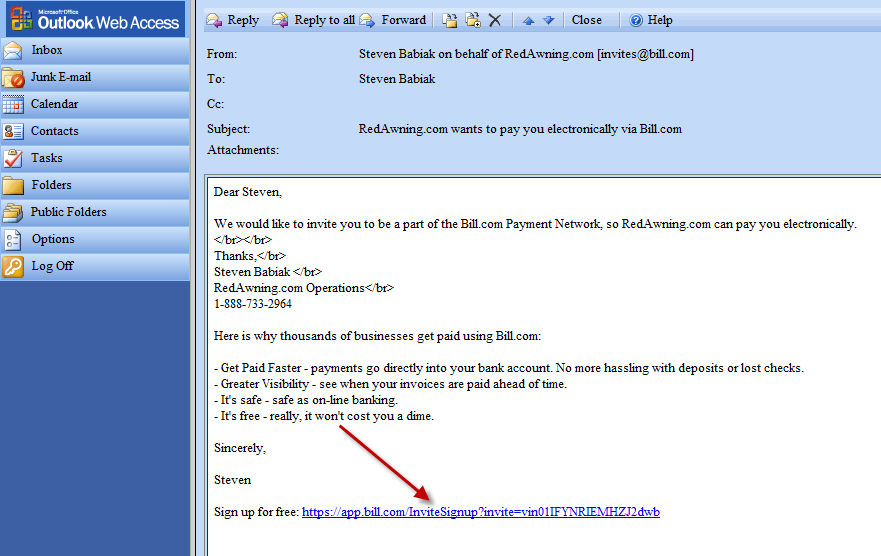
With the email open, click on the blue link just below the signature to sign up. The link will take you to Bill.com. You will want to close the small box that comes up on the webpage by clicking on the small black "X" in the left corner.
Step 3
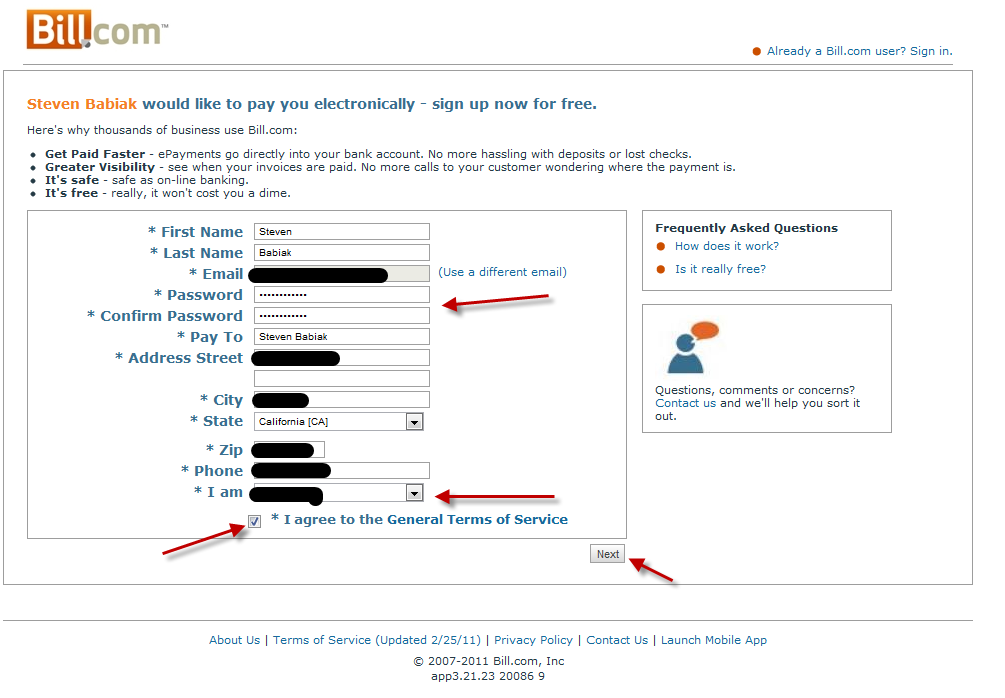
Fill in your information in the corresponding sections. Under the "I am" section, select "Vendor". Before clicking "Next", make sure you have checked off the box next to "I agree to the General Terms of Service". Double check the information, and click next to proceed.
Step 4
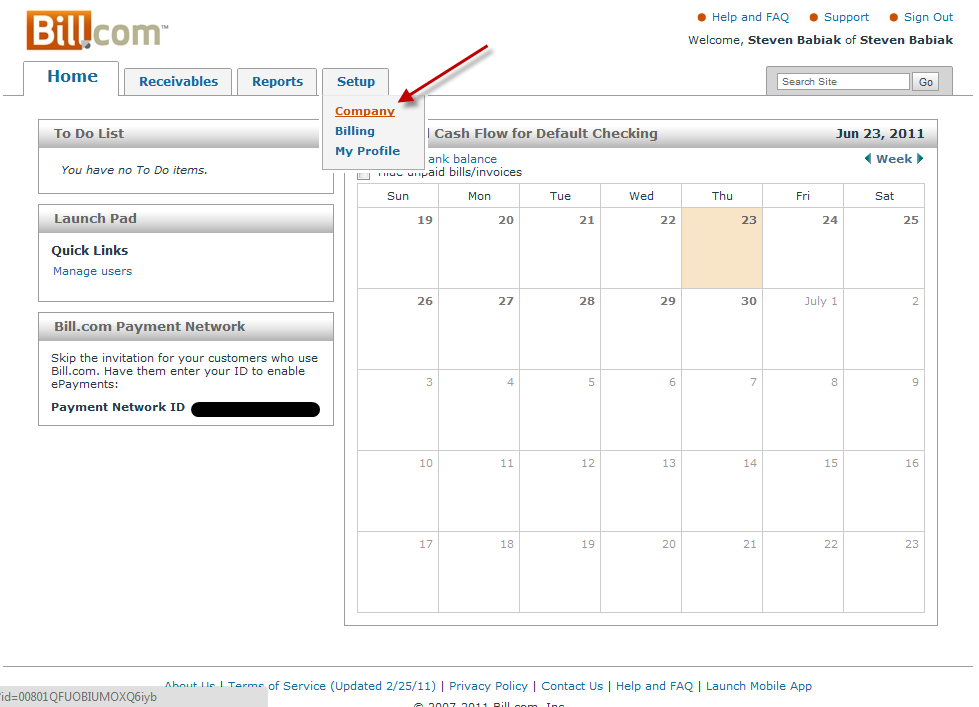
You are now at the Home page. Move your cursor over Setup option at top, and click on Company underneath.
Step 5
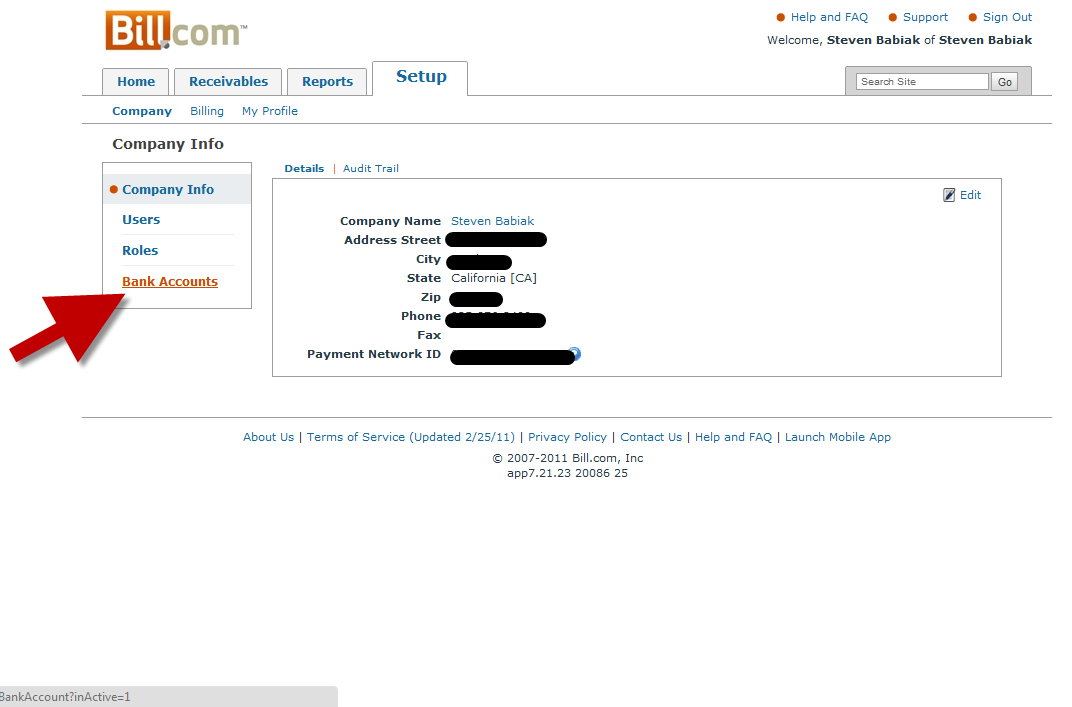
You are now at the Company Info page. On the left side, click on "Bank Accounts".
Step 6
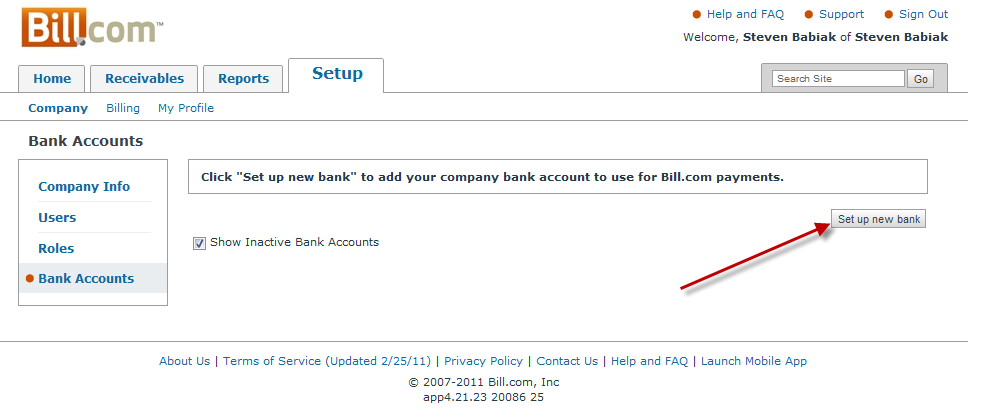
Once at the Bank Accounts page, click on the grey-box button "Set up new bank".
Step 7
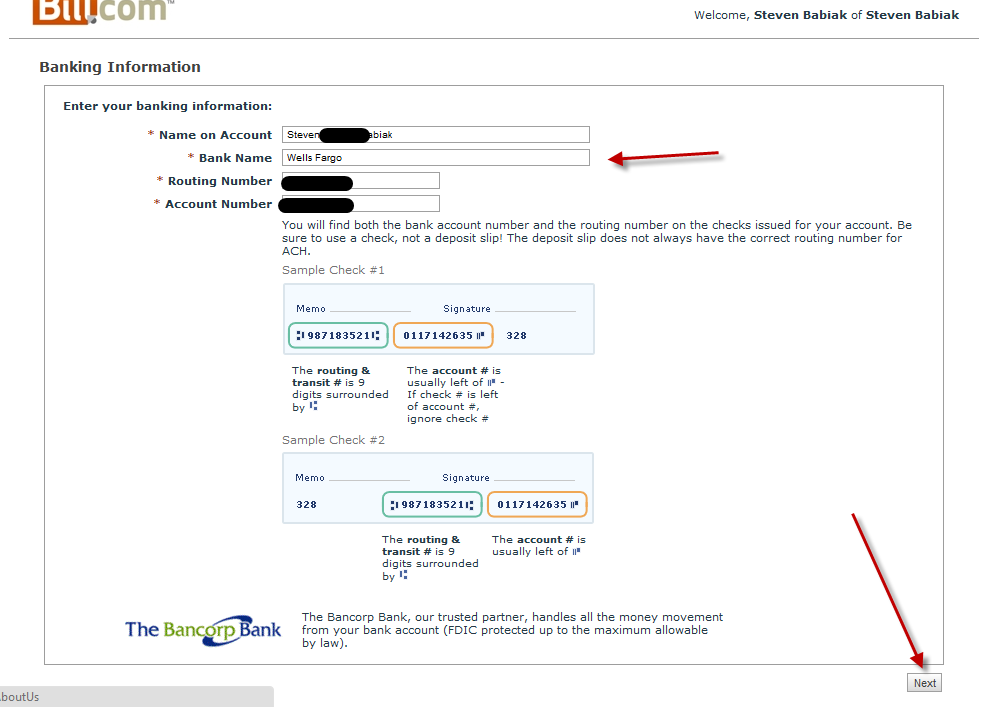
Enter you Bank Account information. For "Bank Name", write the full bank name. It will tell you if it does not recognize the bank. Enter your Routing and Account numbers. When finished, confirm the information and click next.
Step 8
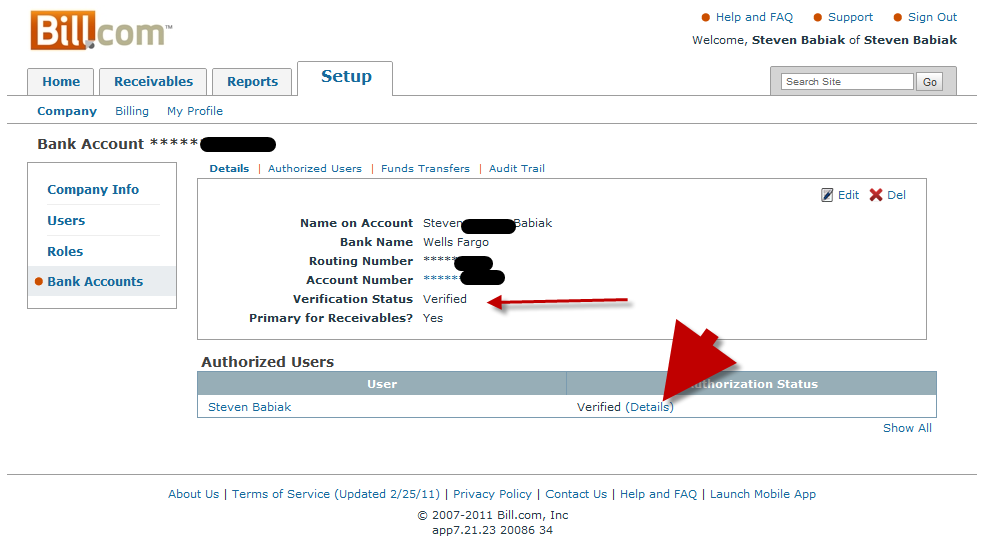
You are now at that Bank Accounts page. Look for Verification Status to read "Verified". You can view details at the big red arrow. If the page says something other than "Verified", check you information for mistakes. If you are still experiencing problems, call us at 1-888-733-2964.