

Greetings, RedAwning Owners!
Below is Instruction on Synchronizing Google Calendar
Synchronizing your Google Calendar with RedAwning.com
We can automatically update your RedAwning.com availability calendar to be in sync with your Google calendar as long as you are keeping that calendar up to date.
RedAwning enables immediate online booking so it is very important that our calendar is current 100% of the time to avoid double bookings.
Also, if you want to hold dates for any reason, you should block them on your calendar until you want to release them as we will make them available for immediate booking as long as they are open. RedAwning will update our calendar daily so we will automatically block on our availability calendar any new bookings or dates being held, and we will also reopen any blocked dates as soon as you unblock them.
Easy Steps to provide your Google calendar link to RedAwning:
- Go to your Google Calendar
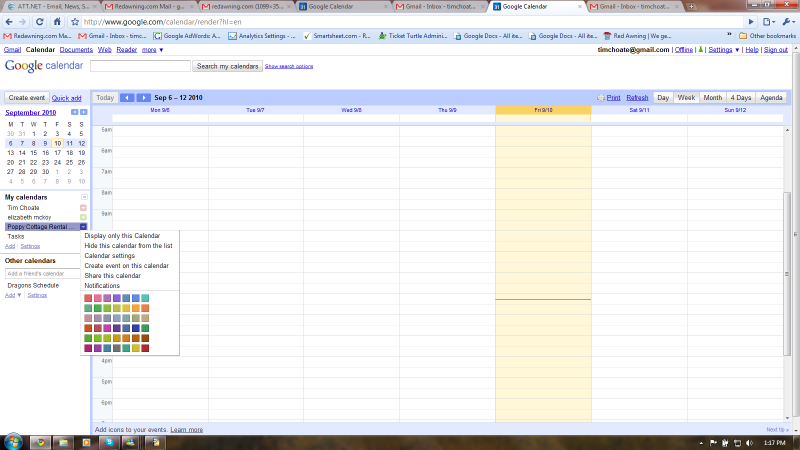
- Click on the arrow to the right of your calendar name on the “My Calendars” list, to show the dropdown menu. Then select “Calendar Settings” on the menu.
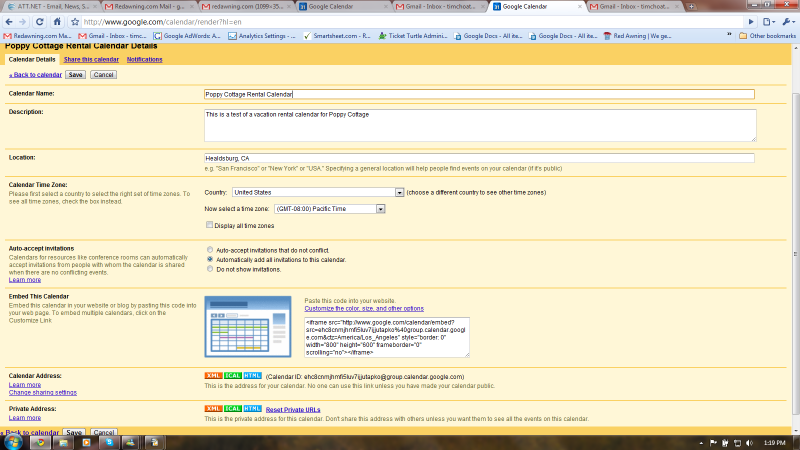
- On the following screen, toward the bottom, there is a “Calendar Address” Section. Click on the green “ICAL” button in that section.
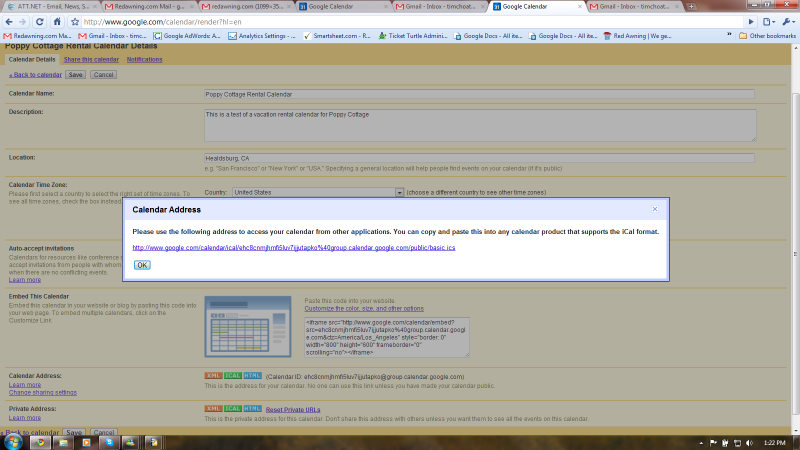
4. When you click on “ICAL” in the Calendar Address Section, you will see a pop-up window, displaying your calendar address. This is the address you need to provide to RedAwning.com. Just copy and past this address into an email that you send to [email protected].
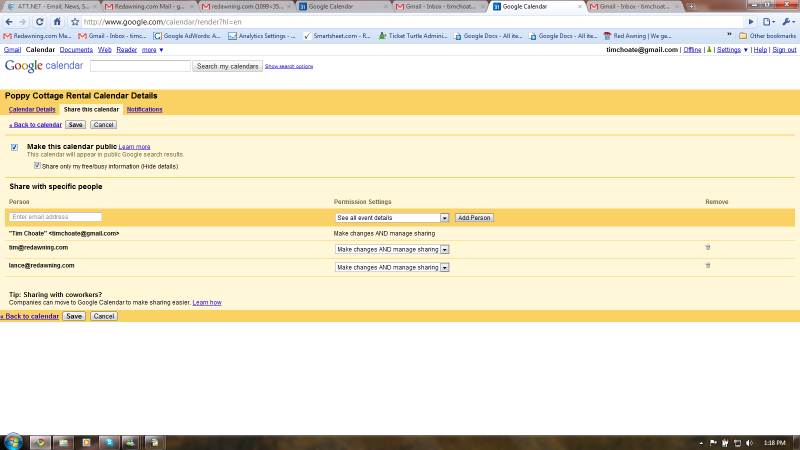
- You must also set your calendar to be “Public.” To do this, you need to select “Change Sharing Settings” on the same page as #3 above, to the left of the “ICAL” Button. On the screen that follows, you will need to check the box at the top which says “Make this calendar public.”
(Note you can select to “Share only free/busy information” or leave that blank. It won't matter to RedAwning.com).
Once you provide your calendar link to RedAwning.com, we will immediately begin to auto-synchronize your calendar so you no longer need to provide us with calendar updates manually. It is very important that you maintain your web calendar 100% of the time to insure we do not double book your property. Here are some helpful tips:
- NEW BOOKINGS: You should immediately add any new bookings to your calendar. Our standard approach, which is commonly used by others, is to block only the nights actually booked. For example, if you have a booking which starts on the 16th with checkout on the 18th, you should mark the 16th and 17th as Booked on your calendar, but NOT the 18th.
- TENTATIVE BOOKINGS: If you want to hold dates for any reason, you need to mark them on your calendar as “Held” or “Tentative.” Our system will not read the names so however you want to title it is fine, but you need to carry those titles as an event for the dates you are holding. Note that we would expect you to honor a booking that occurs during open dates, even if you had told someone they were open, as long as those dates weren't already booked when we took our booking.
- RELEASING BOOKINGS OR TENTATIVE BOOKINGS: If you want to release any dates, all you need to do is delete that event on your calendar and our calendars will automatically be updated.
- REDAWNING BOOKINGS ON YOUR CALENDAR: Note that we don't have any privilege to update your Google calendar ourselves, so we will not be putting our bookings on your calendar. We will always have all of our bookings on our own calendar on the RedAwning site, but if you want to keep your Google calendar current for other sources, you will need to expressly add any RedAwning bookings to your Google calendar.
We are here to answer any questions you have (just email [email protected]) and we are excited to offer you another first in the vacation rental industry by incorporating automatic calendar updates into our booking platform.